---
title: Submitting Assessments in the App
description: Learn how to properly submit assessments in the SkillGrader app. Understand the difference between Completed and Submitted status, how to make edits, and why timely submission is critical to avoid data loss.
---
[Skip to content](https://knowledge.skillgrader.com/kb/submitting-assessments-in-the-app#main-content)
English - United States
Show submenu for translations

Open main navigation
Close main navigation
- English - United States
Show submenu for translations
- [Contact us](mailto:support@skillgrader.com)
[Contact us](mailto:support@skillgrader.com)
Start your search here
- There are no suggestions because the search field is empty.
1. [SkillGrader](https://knowledge.skillgrader.com/kb?hsLang=en-us)
2. [Getting Started](https://knowledge.skillgrader.com/kb/getting-started?hsLang=en-us)
# Submitting Assessments in the App
## Once you’ve completed an assessment in the SkillGrader app, it’s important to understand the difference between a Completed and a Submitted assessment. This guide will walk you through what happens when you finish grading, how to make edits if needed, and how to fully submit your results to the web portal.
#### Step 1: Finishing the Assessment
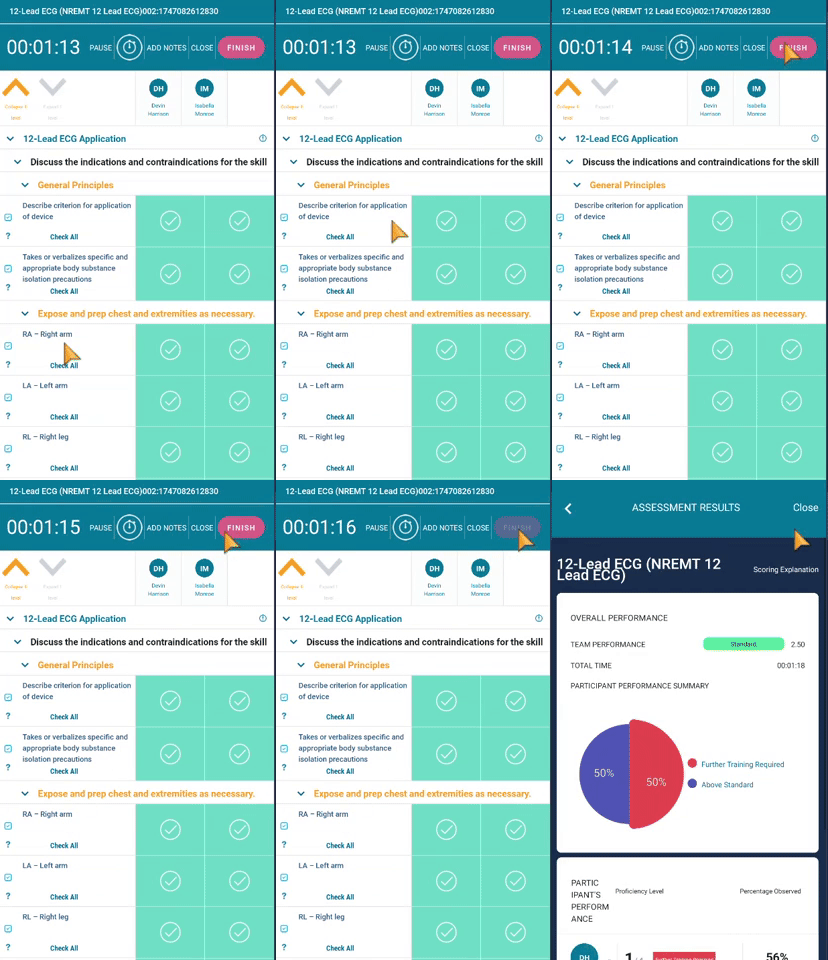
After you've scored all required components of the assessment:
1. Tap the **Finish** button.
2. You’ll be redirected to the **Assessment Results** page.
At this stage, the assessment moves into the **Completed** queue on your app's homepage.
---
#### Step 2: Making Final Edits (Optional)
Even though the assessment is marked as **Completed**, it is **not yet submitted**.
- You can still go back into the assessment from the Completed queue.
- This allows you to:
- Make score adjustments
- Add or edit notes
- Review your entries

---
#### Step 3: Submitting the Assessment
Once you're satisfied with the assessment and ready to lock in the results:
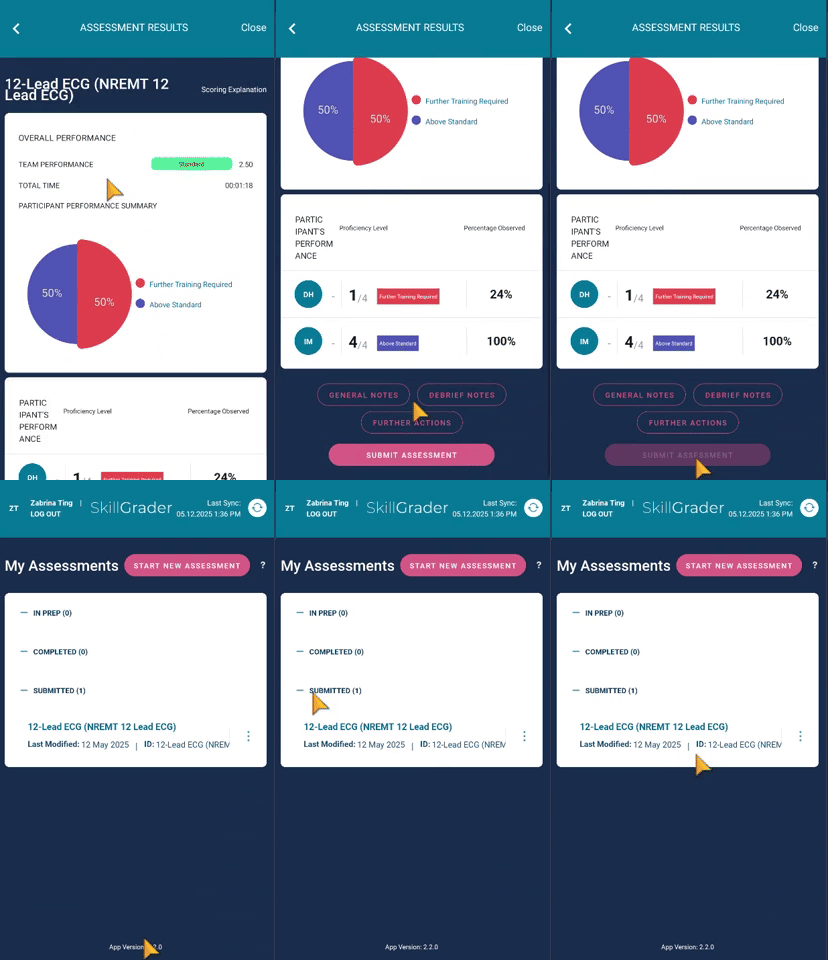
1. Scroll to the **very bottom** of the **Assessment Results** page.
2. Tap the **Submit** button.
**Important:** Submitting the assessment will lock the scores and send the data to the SkillGrader web portal. You will no longer be able to make edits after this step.
**Warning:** Any assessment that is not submitted is at risk of being lost, especially if the device is reset, app data is cleared, or syncing issues occur.
---
#### What Happens After Submission?
- The assessment now appears in the **Submitted** queue.
- The results are synced with the **web portal**, where instructors and admins can:
- View detailed dashboards
- Analyze scoring trends
- Export data if needed
---
#### Summary
| Stage | Can Edit? | Appears In App Queue | Sent to Web Portal? |
| --- | --- | --- | --- |
| In Progress | Yes | In Progress | No |
| Completed | Yes | Completed | No |
| Submitted | No | Submitted | Yes |
- [Getting Started](https://knowledge.skillgrader.com/kb/getting-started?hsLang=en-us)
- [FAQs](https://knowledge.skillgrader.com/kb/faqs?hsLang=en-us)
- Home
- Products
- Pricing
- Blog
- Company
[](http://skillgrader.com?hsLang=en-us)
[mailto:email@email.com](mailto:email@email.com)
Copyright © 2026, SkillGrader